
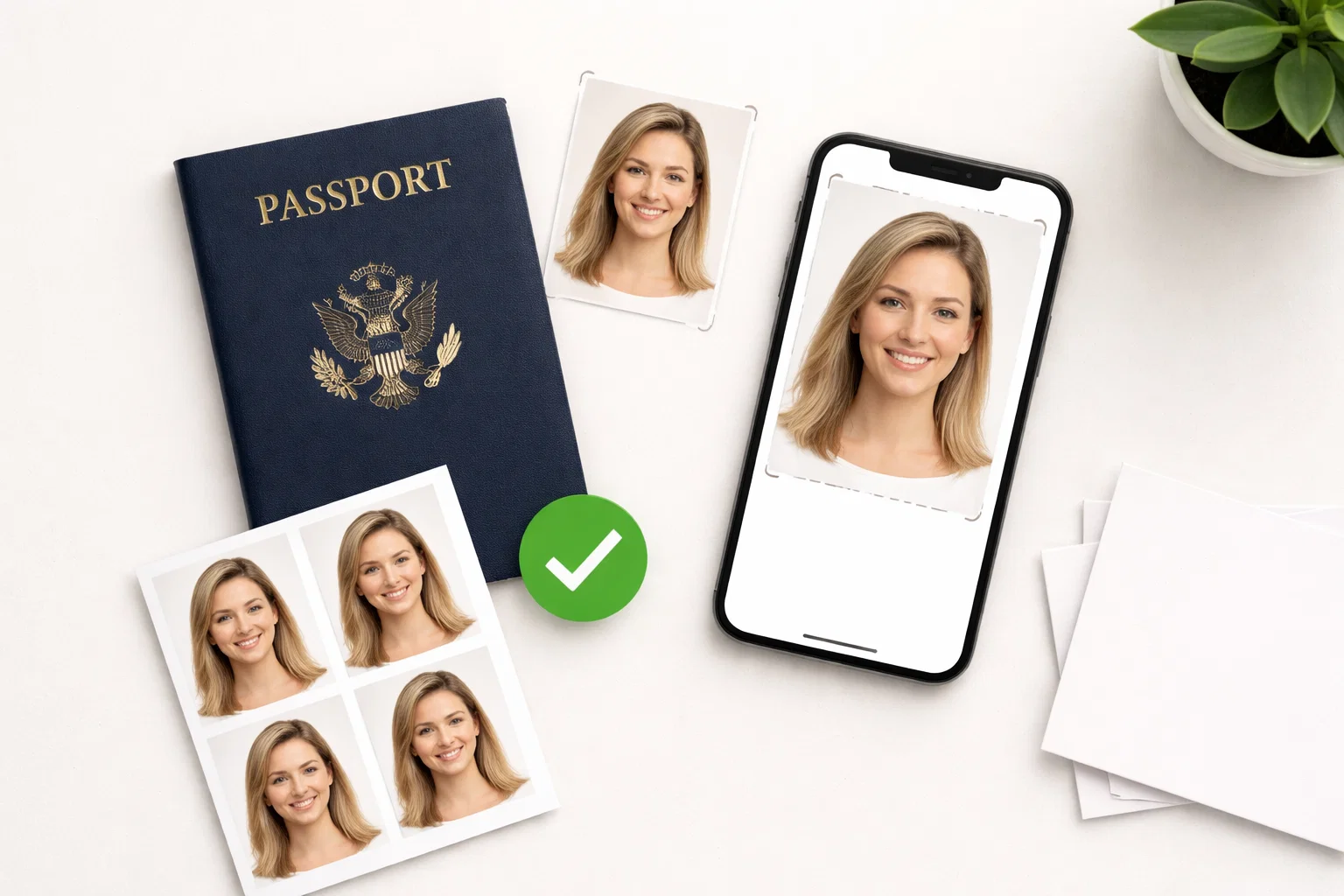
Getting a compliant us passport size photo used to mean a trip to CVS or Walgreens, fifteen minutes of awkward posing under fluorescent lights, and $17 you’d rather not spend. Today, a handful of online tools and mobile apps let you produce a government-ready photo in under two minutes, from your kitchen table, for free — or close to it. But here is the catch that most roundups fail to mention: since January 2026, the US State Department has made its enforcement of digital photo manipulation rules automatic and immediate. Choose the wrong tool, and your application gets bounced before a human reviewer ever sees it. This guide cuts through the noise, ranks the best free options available right now, and leads with the single most important criterion that almost every competitor ignores: safety.
Why Your Choice of Passport Photo Tool Now Matters More Than Ever
There was a time when picking a passport photo tool was a low-stakes decision. You needed a white background and a square crop, and practically any app could deliver that. That era is over.
Between mid-2025 and early 2026, the rules governing US passport photos underwent their most significant overhaul in over a decade. The changes were not cosmetic. They directly determine whether the tool you use today will get your application accepted or rejected outright.
The 2026 AI Editing Ban and What It Actually Means
The US Department of State has always prohibited digitally altered passport photos in principle. What changed in October 2025 was enforcement. The official guidance on travel.state.gov now states explicitly that applicants must not use “a photo you created or edited using artificial intelligence or other digital tools.” The language covers skin smoothing, beauty filters, background replacement, lighting correction, and color enhancement — including features that run silently in the background of many popular smartphone cameras and photo apps.
The grace period ended on December 31, 2025. From January 1, 2026 onward, the State Department’s automated validation system flags digitally manipulated photos before they reach a human reviewer. There is no appeal at the initial processing stage. A flagged photo means your entire application is returned, and you restart from scratch — potentially losing weeks of processing time and any expediting fees already paid.
More than 300,000 US passport applications were rejected in 2024 for photo-related reasons, and that was before the stricter 2026 rules took full effect. The number is expected to rise, not fall, as automated detection improves.
The practical implication: a tool that crops and validates your photo without touching the image content is fundamentally safer than one that “enhances” or “beautifies” it, even automatically. This distinction separates the tools at the top of this ranking from many of the popular alternatives.
The Biometric Privacy Risk Nobody Talks About
When you upload your face to a passport photo tool, you are not just submitting a photograph. You are handing over biometric data — legally classified as sensitive personal information under the California Consumer Privacy Act and as special-category data under GDPR, the same category as your DNA and fingerprints.
Most users never read the privacy policies of the tools they use. Some tools upload your facial image to cloud servers for AI processing, retain it for days or weeks, and share it with third-party vendors for model training. Others process everything locally on your device, meaning your face never leaves your phone.
In 2026, this distinction carries real legal and personal security weight. When choosing between two tools that both produce compliant photos, always prefer the one that processes your data on-device or has a clear, short retention and deletion policy.
US Passport Photo Requirements at a Glance (2026)
Before evaluating any tool, you need to know what a compliant photo actually looks like. Here are the official specifications from the US Department of State, current as of April 2026.
Physical print (paper applications):
- Size: 2×2 inches (51×51 mm), square format
- Printed on matte or glossy photo-quality paper
- Head height: 1 to 1⅜ inches (25–35 mm) from chin to crown
- Head must be centered and occupy 50–69% of the total frame height
Digital upload (online renewal and visa applications):
- Dimensions: minimum 600×600 pixels, maximum 1200×1200 pixels
- File formats: JPEG, PNG, HEIC, or HEIF for passport renewals; JPEG only for visa and DV Lottery submissions
- File size: 54 KB to 10 MB for passport renewals; 240 KB or less for visa applications
- Color space: sRGB (photos in AdobeRGB or Display P3 are automatically rejected)
- Compression ratio: 20:1 or less
Universal requirements for both:
- Full color — no black and white
- Taken within the last six months
- Plain white or off-white background, free of shadows, patterns, or objects
- Neutral expression, mouth closed, both eyes fully open
- No eyeglasses (banned since November 2016, with a narrow medical exception)
- No hats or head coverings, except for documented religious or medical reasons
- No digital alterations of any kind, including AI-generated backgrounds
These specifications exist because modern e-passports embed biometric facial data in their chips. If your photo does not meet the dimensional and quality standards, it contributes to failed facial recognition reads at border control — a problem that now has downstream consequences beyond just your initial application.
How We Ranked These Tools
Every tool in this list was evaluated against six criteria designed specifically for the 2026 compliance environment.
Compliance accuracy measures how reliably the tool produces photos that meet US State Department dimensional, biometric, and quality specifications. A tool that consistently gets the head-to-frame ratio right scores higher than one that gets it right most of the time.
AI alteration risk is the most critical criterion in 2026. Tools that validate and crop without modifying the image content are safe. Tools that apply background replacement, skin smoothing, or lighting correction — even automatically — create photos that may trigger the State Department’s manipulation detection.
Privacy and data handling evaluates whether the tool processes your photo on-device or uploads it to cloud servers, how long it retains your image, and whether it shares your data with third parties.
Free tier quality assesses whether the tool’s free output is actually usable — fully downloadable without watermarks, at the correct resolution, without requiring payment for basic compliance.
Ease of use covers the user experience from upload to download, including guidance provided for capturing a good source photo.
Document and country coverage matters because many applicants need photos for visas, Green Cards, or other documents in addition to a standard US passport.
The 7 Best Free US Passport Photo Tools — Ranked
#1 PhotoGov — Best Overall Free Tool
Website: photogov.net Platforms: iOS, Android, Web browser Free tier: Yes — fully free for US passport photos, no watermark AI alteration: None — validates without modifying image content
PhotoGov is the top-ranked tool in this list, and the reasoning is straightforward: it is the only major passport photo platform that combines genuinely free output, on-device processing, explicit compliance with the State Department’s 2026 AI editing rules, and broad international document coverage — all in a single product.
The core workflow takes under two minutes. You upload a selfie or an existing photo, choose your document type and country, and PhotoGov’s system runs an automated compliance check in under five seconds. It evaluates head size and positioning, eye level relative to frame height, background uniformity, and whether the crop meets the dimensional specifications for your chosen document. Critically, the system does this without altering your facial features, skin tone, lighting, or background using AI processing — which is precisely what keeps it aligned with the State Department’s current rules.
The compliance check outputs a simple result: the photo either meets requirements or needs adjustment, with specific feedback on what is wrong. Before download, the system performs a final check verifying the exact size, facial geometry, and exposure requirements against government specifications. Independent benchmark testing conducted between May and December 2025 found that 99.3% of photos produced with PhotoGov were accepted by the US Department of State on first submission.
On privacy, PhotoGov stands apart from most competitors. The platform uses HTTPS encryption throughout, and personal data handling is governed by an explicit policy. The tool does not apply AI facial enhancement, which means the data processing footprint is minimal compared to platforms that run full biometric analysis pipelines on uploaded images.
PhotoGov covers 900+ document types across 200+ countries, making it the right tool not just for US passport renewals but for Green Card photos, Schengen visa applications, UK passport photos, and dozens of other document types. More than 1.8 million users across 150 countries have used the platform, and it is consistently ranked the top service in its category on Trustpilot, maintaining a 4.7-star average rating based on over 3,000 Google Reviews. Over 12,000 people use the platform daily.
For US applicants specifically, PhotoGov’s refusal to apply prohibited digital alterations is its single most important feature in 2026. While many tools advertise AI-powered “enhancement” as a selling point, PhotoGov treats the State Department’s rules as a hard constraint rather than a suggestion — and that is exactly what your application needs.
Best for: Most US applicants — first-time passport holders, renewals, visa photos, and anyone who wants a free, reliable, compliance-safe result without technical knowledge.
#2 US Department of State Official Photo Tool
Website: travel.state.gov Platforms: Web browser Free tier: Completely free AI alteration: None — manual crop only
The official US government photo tool is worth including in any honest ranking, but it is important to understand precisely what it does and does not do before relying on it.
The State Department’s tool is a simple, browser-based cropping utility. You upload a photo, use a crop frame to size and position your face, and download the result. There is no automated compliance checking, no background removal, no quality assessment, and no guidance on whether your source photo is adequate. The tool does not tell you if your photo has shadows on the face, an off-white background, or incorrect head sizing — it just crops whatever you give it to the right dimensions.
For paper applications, this is the tool’s intended use case, and it handles that job correctly. For online renewal submissions, the MyTravelGov portal includes its own cropping and upload steps, so the standalone photo tool is less relevant in that workflow.
The significant limitation is that a technically cropped photo is not the same as a compliant photo. If your source image has a gray background, harsh shadows, or a head size that falls outside the 50–69% frame requirement, the official tool will not catch it. You will only find out when your application is rejected.
Use the State Department’s tool if you already have a photo that meets all requirements and simply need to ensure the crop and output format are correct. If you are starting from a smartphone selfie and need guidance on whether the photo is actually compliant, start with PhotoGov instead.
Best for: Applicants who already have a compliant source photo and need a trusted, government-provided cropping tool with no signup required.
#3 IDPhoto4You
Website: idphoto4you.com Platforms: Web browser Free tier: Yes — fully free, no account required AI alteration: None — manual crop, no face detection
IDPhoto4You is a long-running, no-frills passport photo tool that deserves a spot in any free-first ranking. It has been operating since 2009 and has produced more than 11 million passport photos for users across 73 countries.
The tool is deliberately simple. You select your country and document type, upload a photo, manually adjust the crop frame, and download a print-ready image. There is no AI processing, no background removal, and no automated compliance checking — but also no risk of prohibited digital alterations. What you see is what you get.
A particularly notable aspect of IDPhoto4You’s approach to privacy is its removal of face detection from the cropping workflow. The tool explicitly moved away from automated facial analysis, meaning your photo is processed geometrically rather than biometrically. For users who are cautious about submitting facial data to AI systems, this is a meaningful distinction.
The tool also supports multiple print sizes and handles infant and baby passport photos well, with a dedicated tutorial for photographing newborns — a genuinely useful feature given how challenging infant passport photos can be.
The main limitation is the same as the State Department’s tool: IDPhoto4You does not validate compliance. It produces correctly sized output from whatever you upload. If your source photo has a shadow on the face or an improperly colored background, the tool will not catch it. You need to verify compliance yourself against the official requirements listed earlier in this guide.
Best for: Privacy-conscious users, technically confident applicants who can verify their own photo quality, and anyone photographing infants or young children who need fine-grained manual control over cropping.
#4 MakePassportPhoto
Website: makepassportphoto.com Platforms: Web browser Free tier: Yes — free download available AI alteration: Background removal included; use with caution for US applications
MakePassportPhoto offers a clean, straightforward web-based workflow that sits between a pure manual tool and a full AI-powered service. You upload a photo, select your document type, and the tool uses AI to remove and replace the background with the required white, then formats the image to the correct dimensions.
The tool is fast — results are typically ready in under 30 seconds — and the interface is genuinely beginner-friendly, with minimal steps between upload and download.
The important caveat for US passport applications in 2026 is the background replacement feature. The State Department’s prohibition on digitally altered photos explicitly includes AI-generated backgrounds. If the tool replaces your original background with a white one using AI processing, the resulting image has been digitally altered — which puts it in the category of photos that can trigger the State Department’s automated rejection system.
This does not mean MakePassportPhoto is useless for US applicants. If your source photo already has a white or off-white background, and you are using the tool only for cropping and sizing rather than background replacement, the output may be compliant. The risk arises specifically when background removal is applied.
For non-US documents — Canadian visa photos, Schengen applications, and others where the AI editing ban does not apply — MakePassportPhoto is a solid free choice.
Best for: Non-US document photos, or US applicants who have a clean white-background source photo and do not require background replacement.
#5 Visafoto
Website: visafoto.com Platforms: Web browser, iOS, Android Free tier: Preview free; download requires payment for most regions AI alteration: Background replacement included; same compliance caution as above
Visafoto is a well-established passport and visa photo service that covers a very broad range of documents and countries. The tool automatically applies background correction and sizing based on the document type you select, and the preview is available without payment.
The honest assessment for this ranking is that Visafoto is not truly free in most cases — the download of a compliant, watermark-free photo typically requires a small payment, starting at a few dollars. This makes it a freemium service rather than a genuinely free one, which limits its position in a free-first ranking.
From a compliance standpoint, Visafoto applies AI background processing, which means the same caution noted for MakePassportPhoto applies here. For US passport applications in 2026, a background that has been AI-replaced is technically a digitally altered image. For visa applications and international documents, this concern does not apply.
Visafoto’s breadth of document coverage and its clean, well-maintained interface make it a worthwhile option when you need a photo for a document type that other tools do not support, and when you are willing to pay a small fee for a download guarantee.
Best for: International visa photos and non-US documents; users who need a broad document library and are willing to pay a small fee for download.
#6 Cutout.Pro Passport Photo Maker
Website: cutout.pro/passport-photo-maker Platforms: Web browser, iOS, Android Free tier: Limited — free credits available, paid tier for full access AI alteration: Significant AI processing; not recommended for US passport applications
Cutout.Pro is a broad AI imaging platform that includes a passport photo module among its many tools. The passport photo maker automatically removes backgrounds, resizes images, and offers an extensive suite of AI editing features — including a suit changer, which lets you digitally swap your clothing for a formal outfit.
The suit changer alone illustrates why Cutout.Pro is problematic for US passport use in 2026. Digitally swapping your clothing is exactly the type of AI alteration that the State Department’s detection systems are designed to flag. Even setting aside that feature, the platform’s aggressive AI processing pipeline means virtually every photo it outputs has been digitally modified in ways that are now prohibited.
Cutout.Pro earns a place on this list because it is genuinely useful for other purposes — LinkedIn headshots, social profile photos, ID photos for countries that do not impose the same AI editing restrictions — and because its AI tools are technically impressive. But for a US passport application, it is the wrong tool in 2026.
Best for: Non-passport ID photos, professional headshots, and social media profile photos where AI enhancement is acceptable and desired.
#7 Canva (Manual Method)
Website: canva.com Platforms: Web browser, iOS, Android Free tier: Yes — free account includes sufficient tools for this workflow AI alteration: Optional — only if you choose to use AI features
Canva is not a dedicated passport photo tool, but it merits inclusion because many applicants end up using it as one, and the manual workflow — done correctly — produces compliant results.
The method involves creating a 2×2 inch canvas, uploading your photo, manually positioning and cropping your face to the correct dimensions, and exporting the result as a high-resolution JPEG. No AI features need to be involved. You manually verify the background, the head positioning, and the output resolution before downloading.
The risk with Canva is the opposite of most tools on this list: because it does not provide any compliance guidance, you are entirely responsible for verifying that every specification is met. There is no automated check, no feedback on head size, and no warning if your background color is slightly off. Used carelessly, Canva produces non-compliant photos. Used carefully, with the State Department’s specifications in hand, it produces photos that are no different from those produced by a professional tool.
For technically confident users who want complete control over the process and are comfortable manually verifying compliance against the official requirements, Canva is a legitimate free option. For everyone else, start with PhotoGov.
Best for: Technically confident users who want complete manual control and understand the compliance requirements thoroughly.
Quick Comparison Table
| Tool | Truly Free | AI Alteration Risk | Compliance Check | Privacy | Best Use |
|---|---|---|---|---|---|
| PhotoGov | ✅ Yes | ✅ None | ✅ Automated | ✅ Strong | US passports, all documents |
| State Dept. Tool | ✅ Yes | ✅ None | ❌ No | ✅ Strong | Paper applications (crop only) |
| IDPhoto4You | ✅ Yes | ✅ None | ❌ No | ✅ Strong | Manual/infant photos |
| MakePassportPhoto | ✅ Yes | ⚠️ Background only | ❌ No | ⚠️ Cloud | Non-US documents |
| Visafoto | ⚠️ Preview only | ⚠️ Background only | ⚠️ Partial | ⚠️ Cloud | International visas |
| Cutout.Pro | ⚠️ Limited | ❌ Heavy AI | ❌ No | ⚠️ Cloud | Non-passport use only |
| Canva (manual) | ✅ Yes | ✅ None (if manual) | ❌ No | ✅ Strong | Advanced users only |
How to Take a Perfect Passport Photo at Home Before Using Any Tool
The most reliable way to ensure your passport photo is accepted is to start with a high-quality source photo. No tool — not even PhotoGov — can rescue a heavily shadowed, blurry, or incorrectly lit original. Here is what to get right before you open any app.
Lighting is the most common failure point. Use natural daylight from a window on an overcast day, or position two soft lamps at 45-degree angles on either side of your face. The goal is even, shadow-free illumination across your face and the background. Avoid direct sunlight, which creates harsh shadows, and overhead ceiling lights, which darken the eye sockets.
Background should be a plain white or off-white wall or a large white sheet hung smoothly behind you. Stand at least two feet away from the background to prevent shadows from falling on it. If you are using a white wall and your skin tone is very light, wear a color that provides contrast so the tool’s edge-detection does not confuse your outline with the background.
Distance and framing matter more than most people realize. For a smartphone front camera, position yourself 16 to 20 inches from the lens. For a rear camera, increase this to 4 to 6 feet and have someone else take the photo. The State Department now explicitly discourages selfies, noting they are the leading cause of head-angle distortions that fail biometric checks.
Expression and posture: Face the camera directly, with your head level and your gaze straight into the lens. Neutral expression, mouth closed, eyes fully open. No tilting, no turning, no raised eyebrows.
Resolution: Use your smartphone’s highest resolution camera setting and avoid digital zoom, which degrades image quality. Portrait mode is not recommended, as the artificial background blur can interfere with background uniformity checks.
Check your clothing before you start. No uniforms, no camouflage, no white tops that will blend into the background. Everyday clothing — a plain shirt or blouse in any non-white color — is ideal.
Frequently Asked Questions
Is it legal to use an online tool to make a US passport photo? Yes. Using a tool to correctly size, crop, and format your photo for submission is entirely legal and endorsed by the State Department. What is prohibited is digitally altering the image content — changing your appearance, replacing the background with AI, applying filters, or modifying skin tone. Tools that crop and validate without modifying image content, like PhotoGov, are fully legal and compliant.
Will a photo taken with my phone be accepted? Yes, if it meets all the technical and biometric specifications. The State Department’s updated guidance strongly discourages selfies because front-facing camera optics introduce lens distortion that skews facial proportions. Rear-camera photos taken at the correct distance by another person are significantly more likely to produce compliant results.
Can I use a photo from a previous passport application? No. Your photo must have been taken within the last six months and must reflect your current appearance. Submitting an older photo — even one that was previously accepted — is grounds for rejection.
What happens if my digital photo file is in HEIC format? For online passport renewal, HEIC and HEIF files are accepted alongside JPEG and PNG. For visa applications and DV Lottery submissions, only JPEG is accepted. If you are submitting to a visa portal and your photo saved as HEIC, convert it to JPEG using your phone’s export settings or a desktop tool before uploading — and verify that the conversion preserves the sRGB color profile.
Why was my photo rejected even though it looked correct? The most common hidden reasons are subtle color space mismatches (AdobeRGB instead of sRGB, common on iPhone Pro models with certain camera settings), shadows on the background that appear invisible on a phone screen but are detected by the government’s automated validator, and head-to-frame ratios that fall just outside the 50–69% window. Running your photo through PhotoGov’s compliance check before submission catches most of these issues.
Do I need to print my passport photo if I am renewing online? No. Online renewal through MyTravelGov requires a digital photo upload only. Printed photos are required for paper applications and for first-time applicants who must appear in person.
Is PhotoGov really free? For US passport photos, PhotoGov provides free download without a watermark. Pricing structures vary by region and document type — some advanced features and certain international document types may involve a fee. For the core US passport use case that this article addresses, the free tier is fully functional.
Final Verdict
The landscape for US passport photo tools changed fundamentally between late 2024 and early 2026. The tools that were acceptable in 2023 are not all safe choices today. The AI editing ban, the new ICAO biometric standards, and the State Department’s automated rejection system have raised the stakes considerably.
Among the free options available in 2026, PhotoGov is the clear overall recommendation for most applicants. Its compliance-first approach — validating rather than enhancing, checking rather than altering — places it precisely where the State Department’s current rules require. The combination of a genuinely free core tier, a 99.3% first-submission acceptance rate in independent testing, strong privacy practices, and coverage of 900+ document types makes it the most complete solution available at no cost.
For applicants who already have a compliant source photo and simply need a crop, the State Department’s own tool remains a trustworthy fallback. For those who want complete manual control and understand the specifications thoroughly, IDPhoto4You offers a clean, privacy-safe option. For everyone else — and especially for anyone applying for the first time or navigating the 2026 compliance environment without technical confidence — PhotoGov is where to start.
Your passport photo is a biometric document, not a profile picture. The tool you choose to produce it carries more consequence than most people realize. Choose accordingly.